



The paddle stack,
on one screen.
Sparrk's court queue runs open play from one tablet. Every court, every group waiting, every player's turn — on your screen, and on theirs.
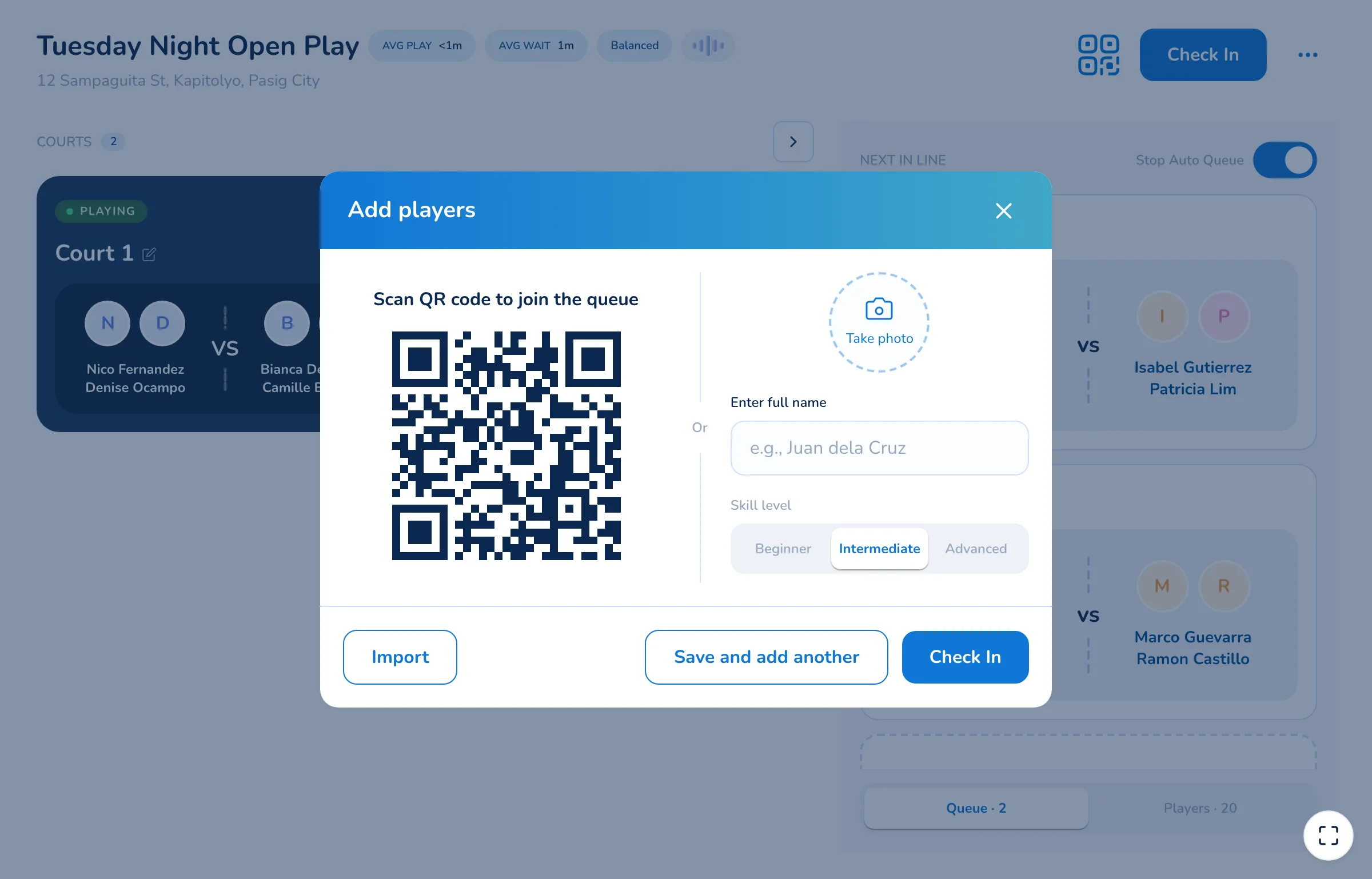
- Players join by scanning a QR — no app to install
- Set how players rotate once, and it runs all session
- Standings and match log at the end
Open play runs on a paddle stack
and somebody’s memory.
Both work — until twenty people show up and the line stops being obvious to everyone standing around it.
- “Paddle!” and everyone looks up A court clears, someone calls it, and every player checks the rack to work out whether it is theirs. The order gets re-argued while the court sits empty.
- The same four keep the court Winners stay because nobody is counting turns, and everyone else rotates around them. That is how a regular stops coming back.
- The organizer barely plays Somebody holds the order, watches the clock and settles who is up. That person paid for a slot too.
- Latecomers get lost A player who walks in at seven has no idea where they stand, and neither does anyone else. Nothing is written down.
None of this is a people problem. It is a list problem — and a list everyone can see, that updates itself, is the one thing a screen does better than a rack of paddles.
What the organizer’s
screen does.
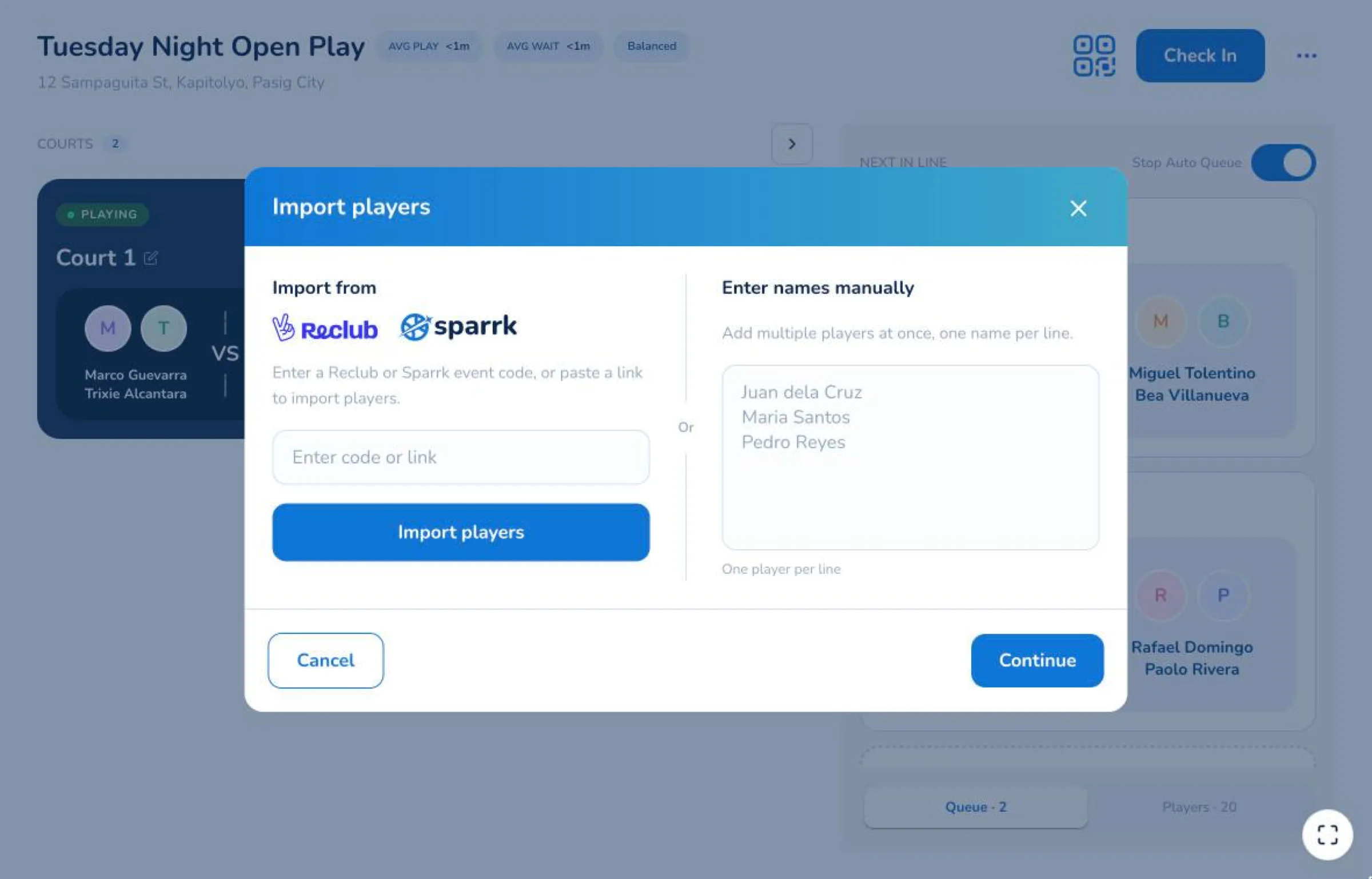
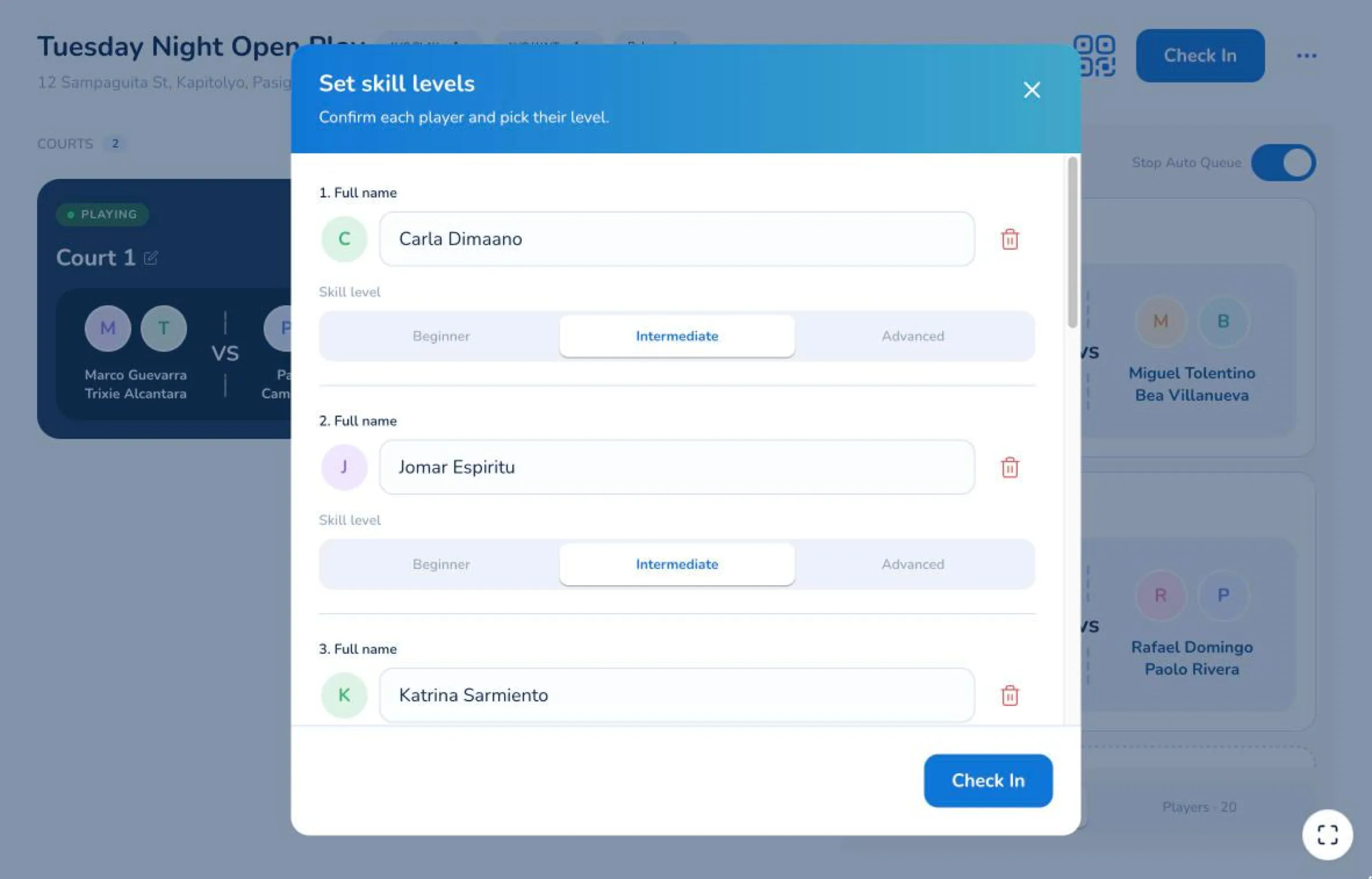
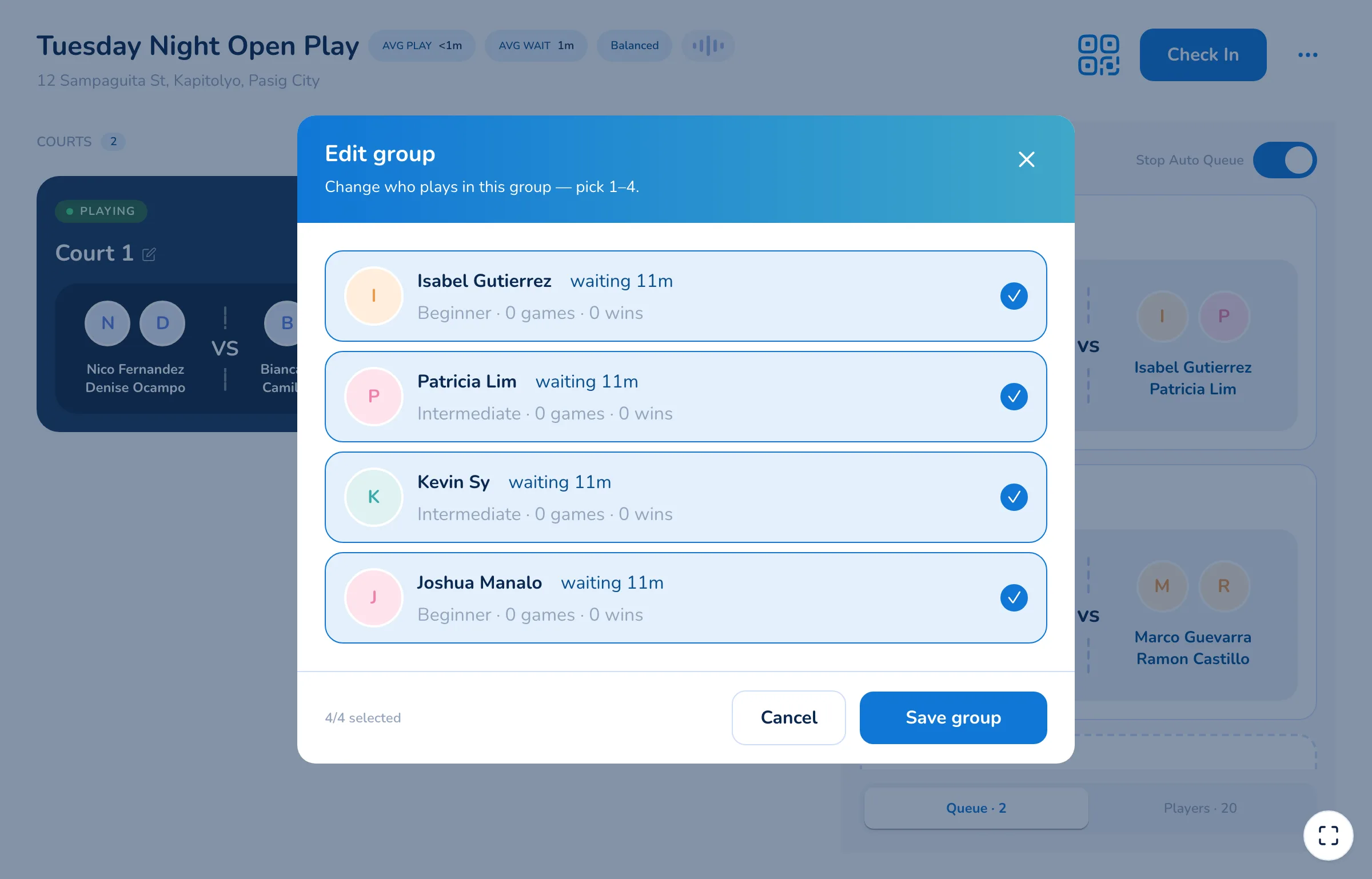
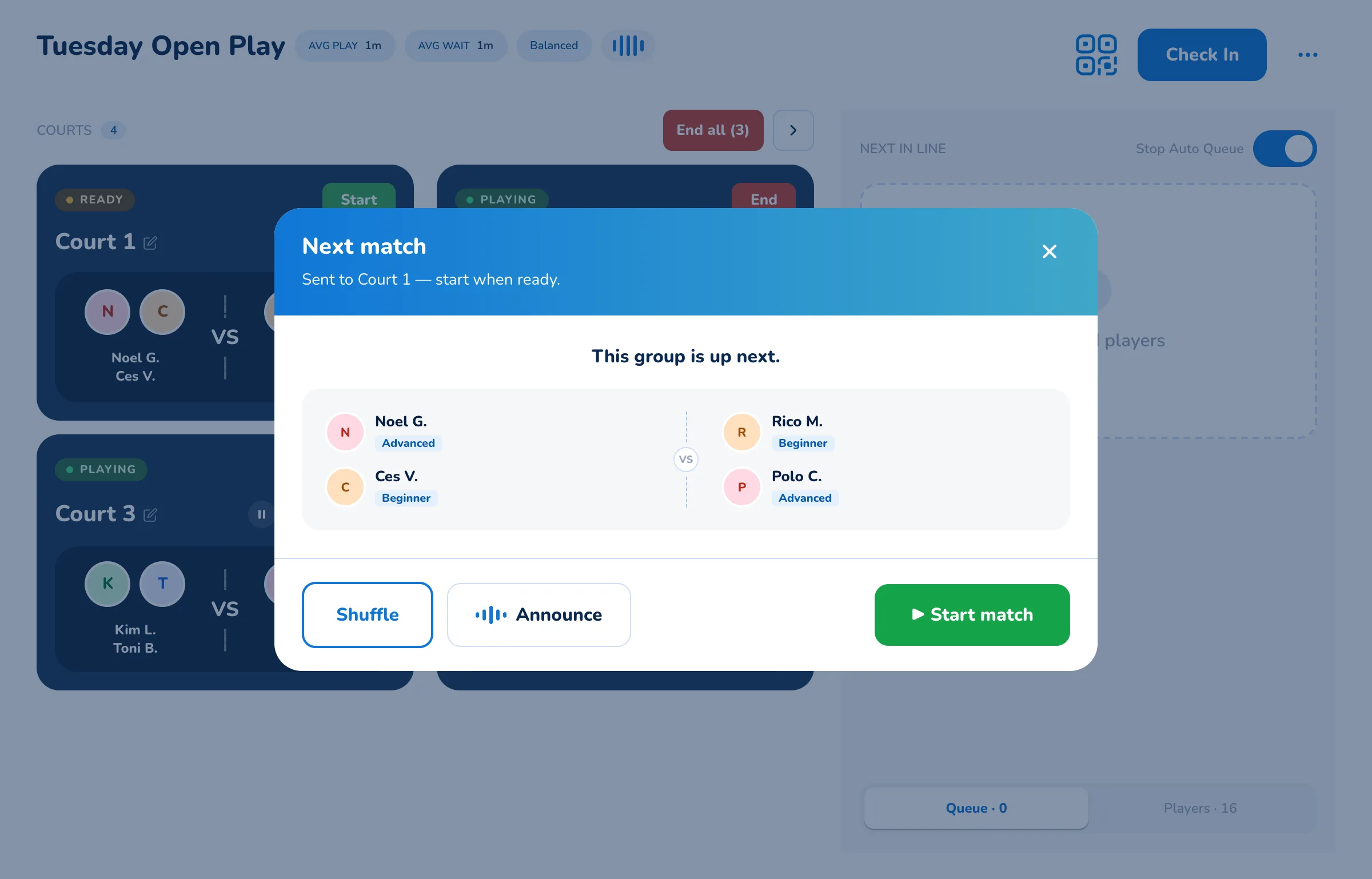
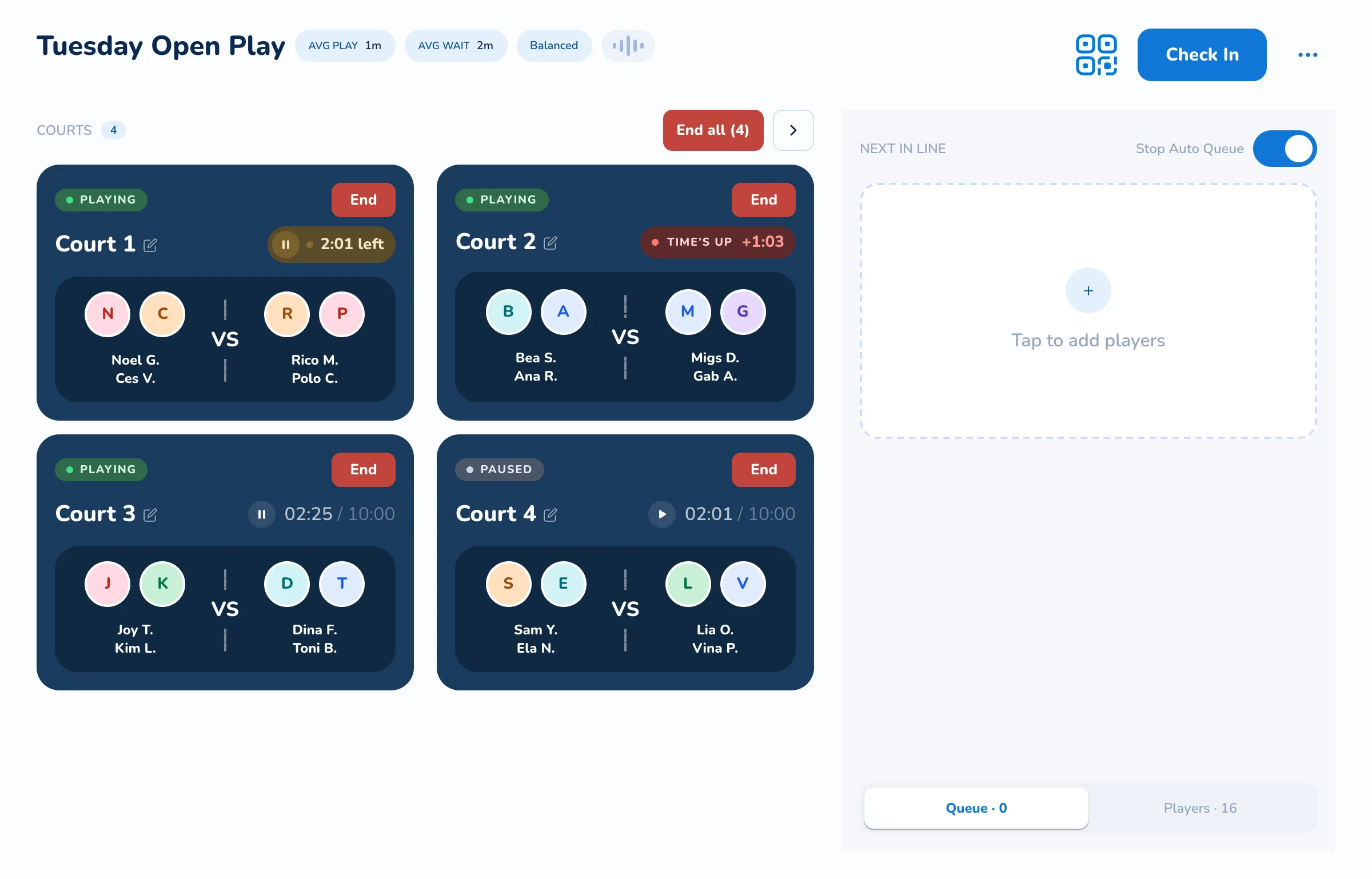
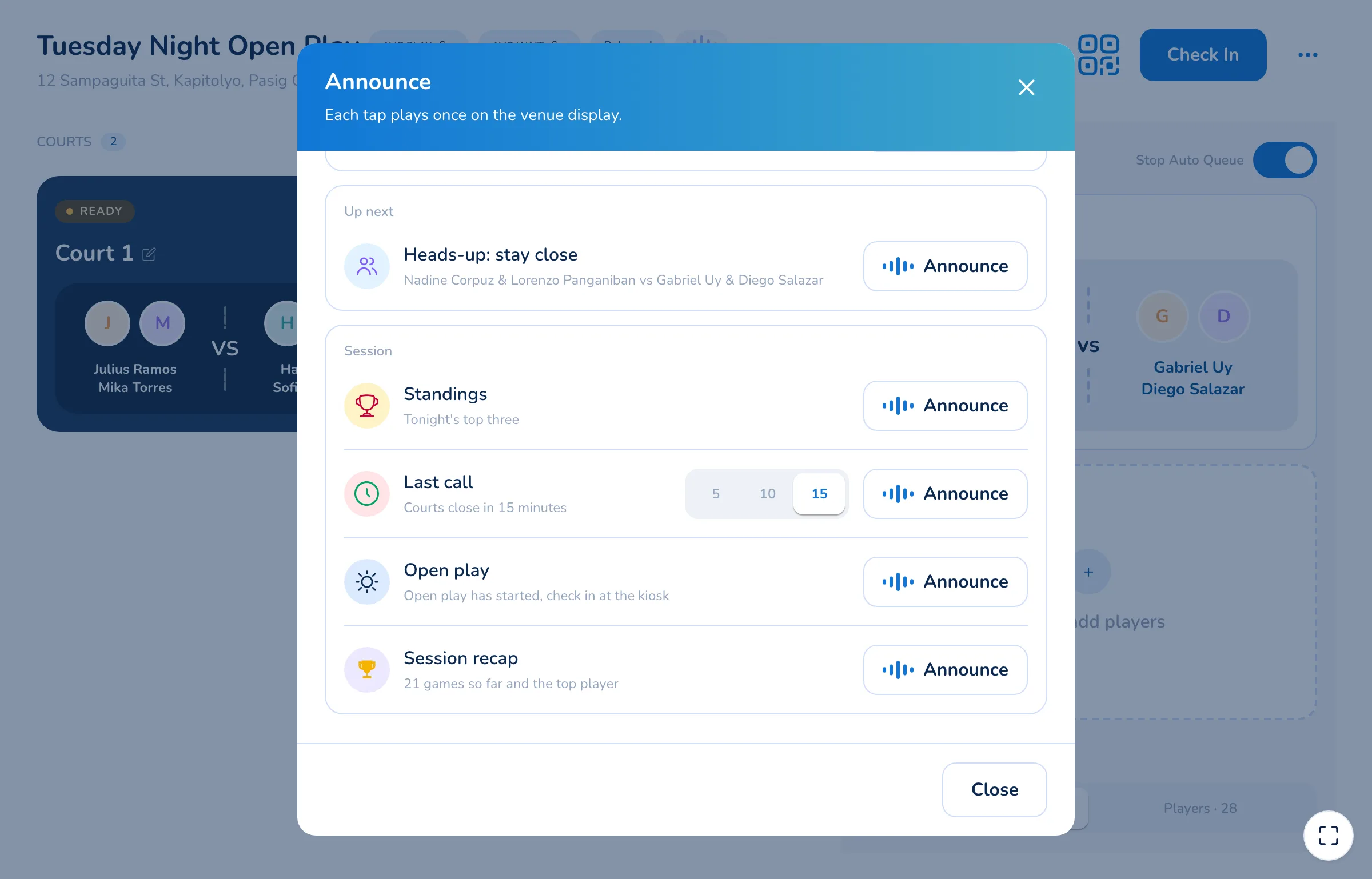
Seven things, in the order a session needs them. Tap one to see its screen.
What the player’s
phone does.
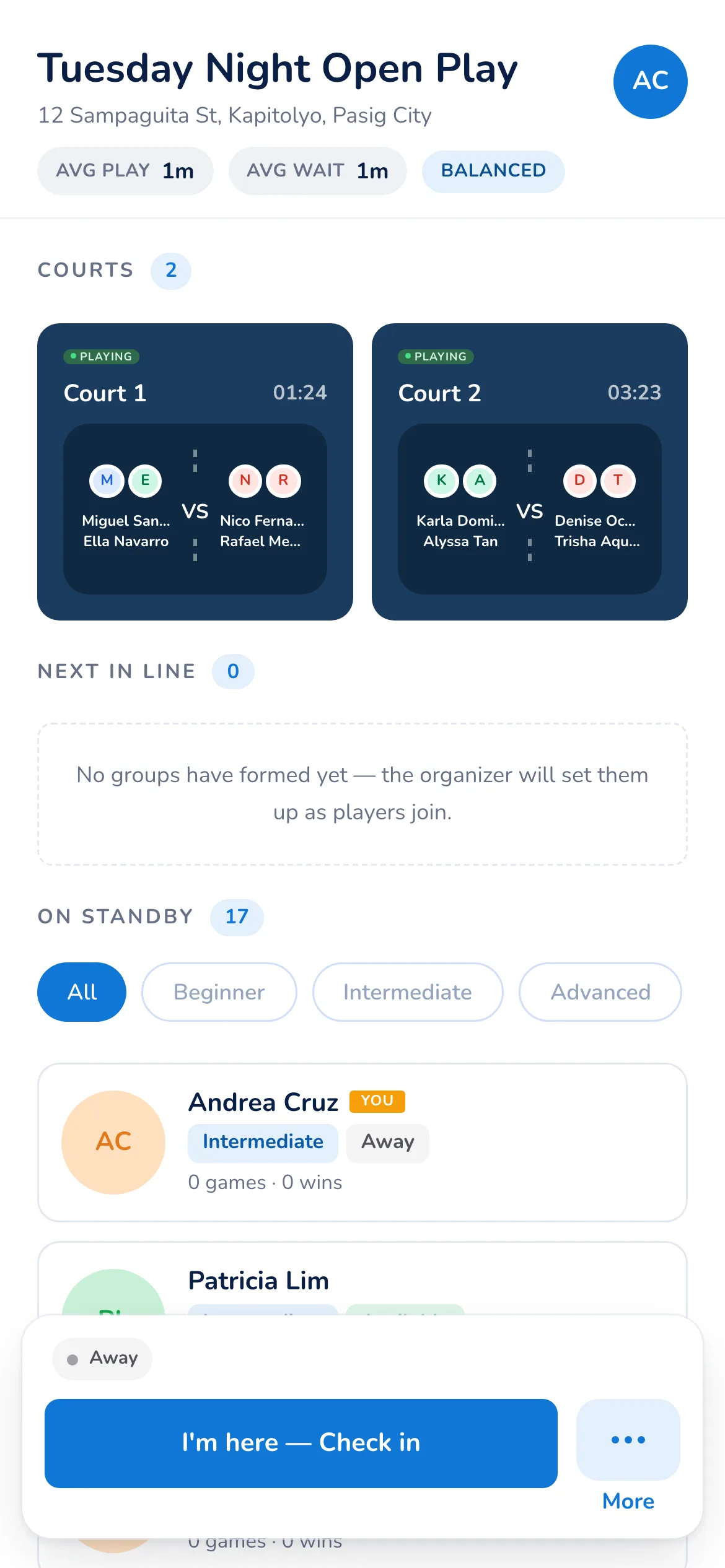
The same session from the other side. Four things a player does without asking the organizer anything.
-
In with one scan
Scan the QR on the tablet and the session opens on your phone, courts and line already showing. Checking in is the one tap after that.
Nothing to type, no code to remember -
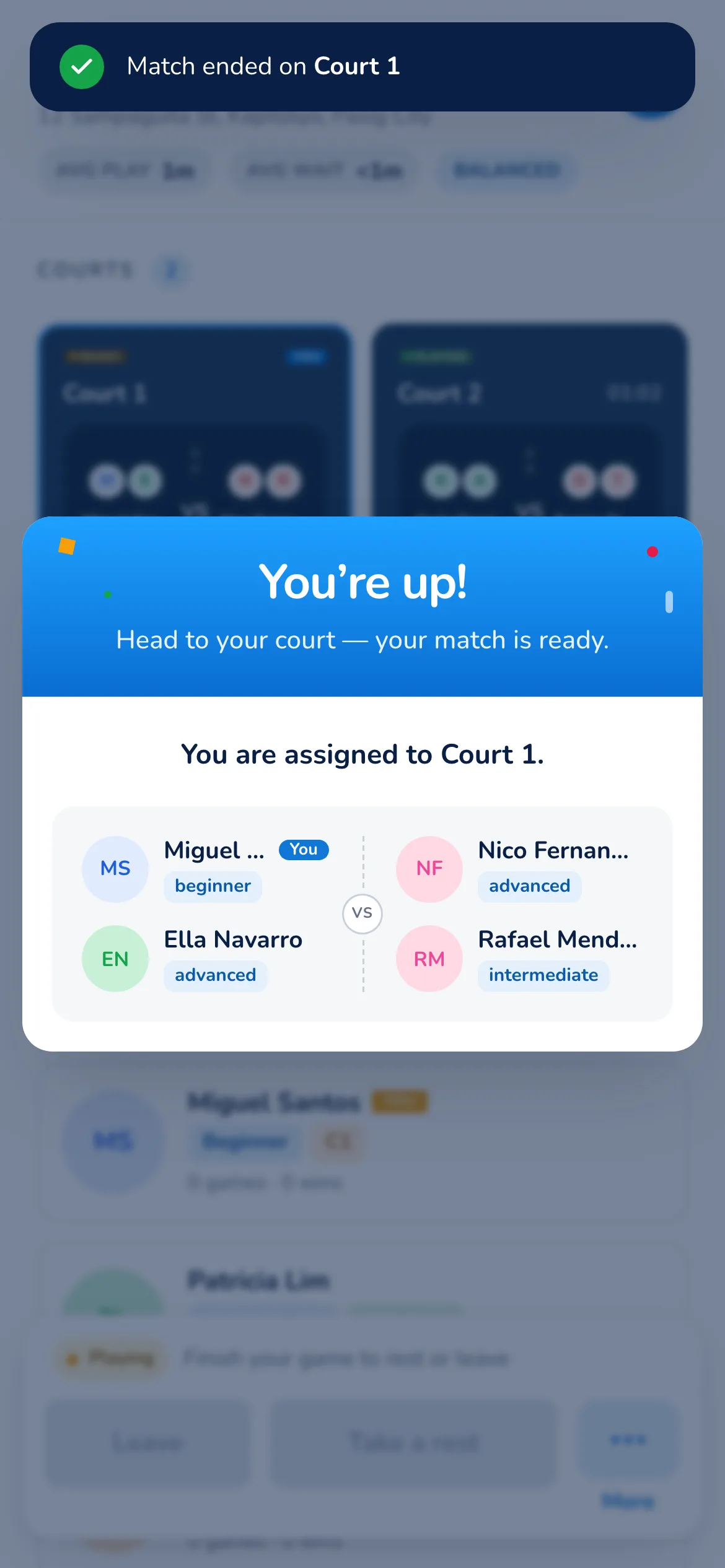
Told when you're next
When your group is called your phone says so, names the court, and shows the four of you — so you can stop watching the tablet across the hall.
The court number, not a guess -
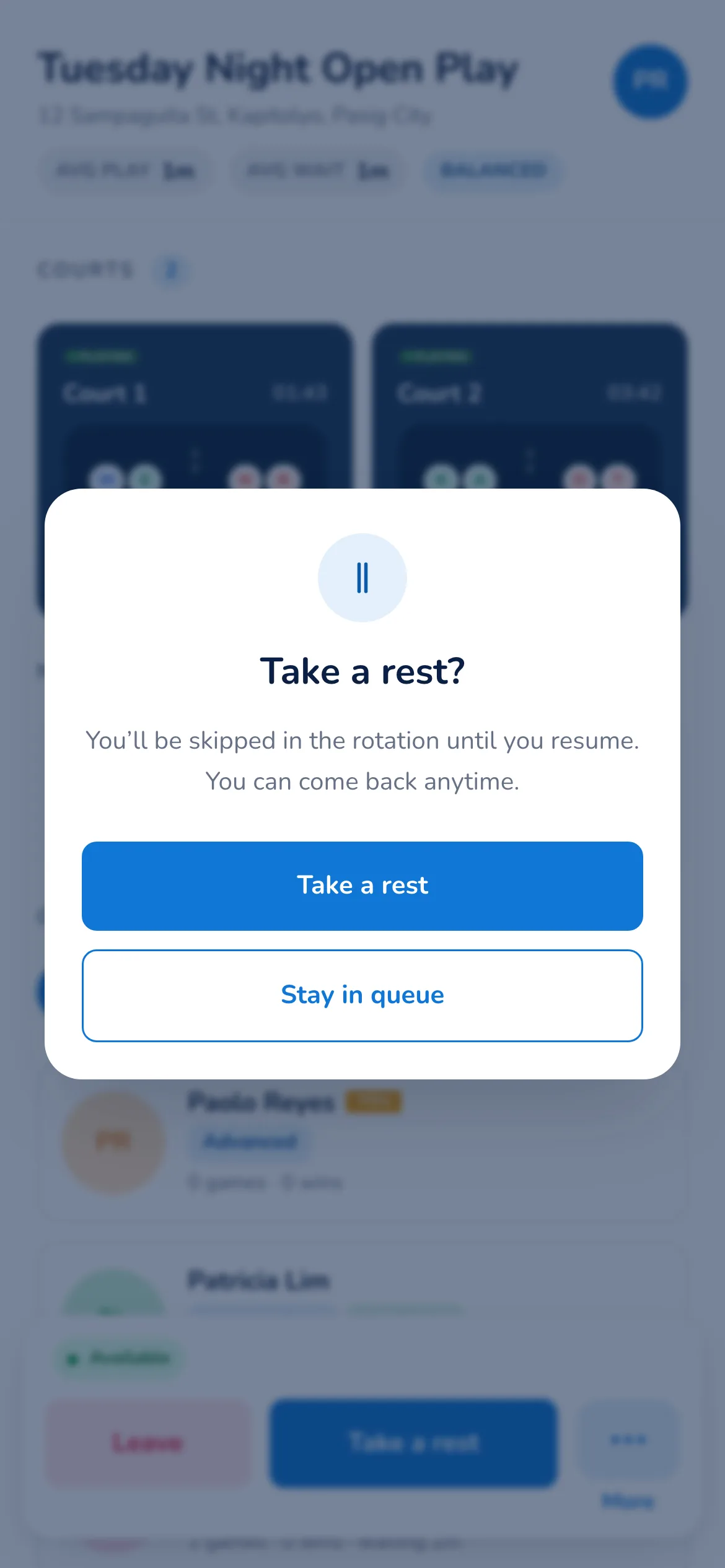
Sit one out without asking
Take a rest and the queue skips you until you come back. No catching the organizer's eye, no losing your place for good.
Skipped, not removed -
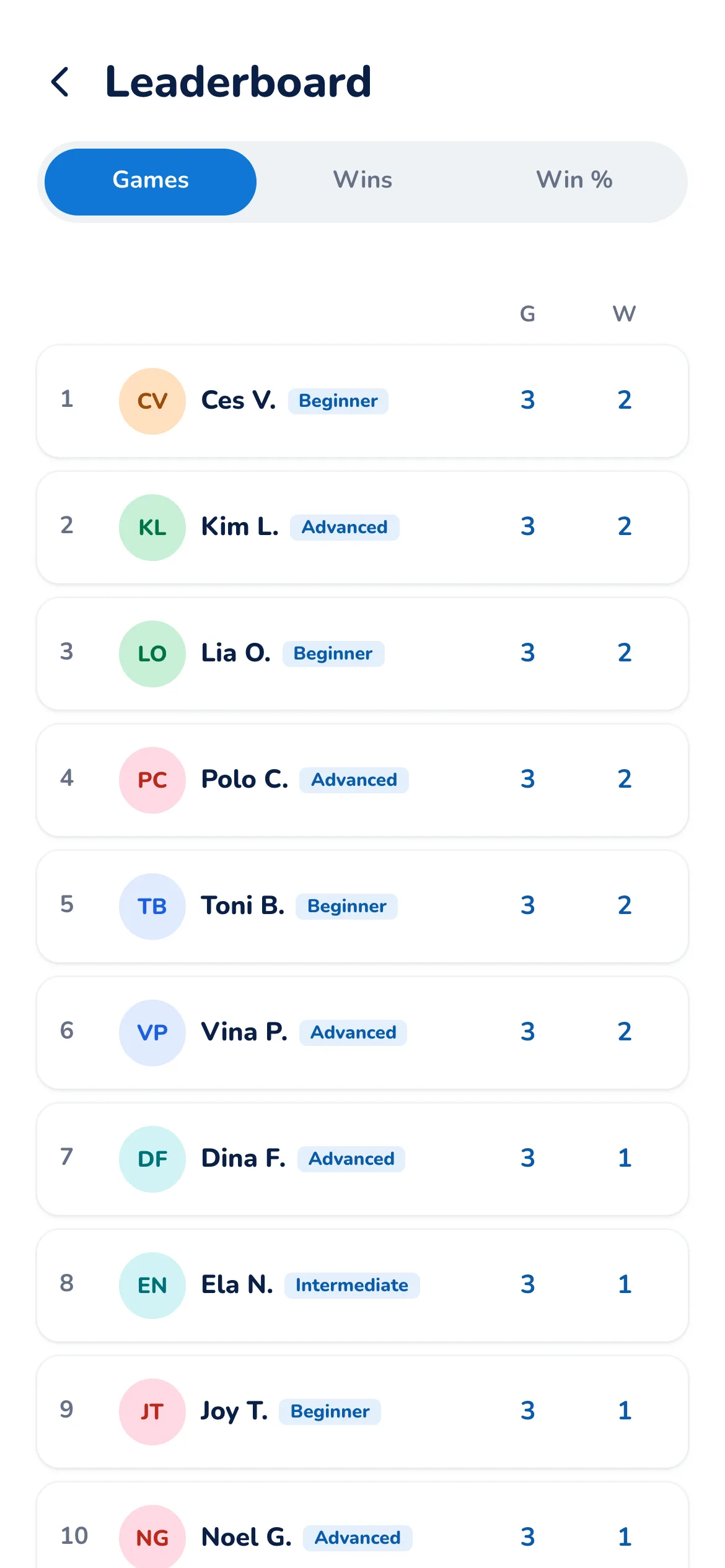
Standings, live and final
Check the standings any time during the session: games, wins and win rate. When it ends, the final standings land on your own screen, ready to share as a link or an image.
Your row, on your own screen
Four ways to pick
the next four.
One tap on the tablet. Same players waiting, four different ways to group them.
Balanced is the default. Switch anytime: the change applies from the next game, and everyone sees the mode on their phone.
What it takes,
and what it doesn’t.
You can open the queue at your next session without changing anything else about how you run it.
-
Nothing to install
A web app in the browser on the tablet you already bring.
-
No account needed
Players scan the QR and the session opens in their phone's browser. Nobody signs up.
-
Fair by default
4-in, 4-out. All four come off, the next four go on. Winners do not stay.
-
Your fees stay yours
The queue never touches money. Collect the way you already do.
-
Any venue
No Sparrk booking and no Sparrk event needed. Open it wherever you play.
-
Players end their own game
Whoever is on court taps who won on their phone, so a game ends even while you are playing.
Run your next
session on it.
Nothing to move over, no list to retype. Just bring a tablet.
- Tell us the venue Sport and courts. We send the link within a day.
- Open it in a browser Nothing to install.
- Run one session Keep your group chat and your fees.
Posting it as a Sparrk event? Enter its code and the player list comes in.
Frequently Asked Questions
Have Questions? We’re Here to Help.
Moving your open play off the paddle stack, or setting up a venue with several courts, tell us how your sessions run and we’ll set it up with you.
What is the Sparrk court queue?
The Sparrk court queue is an open play queueing system for sports venues in the Philippines. It runs in a web browser on both sides: the organizer opens it on a tablet at the venue — every court, every group waiting, the rotation rules and the results — while each player scans a QR code that opens the same session on their own phone, showing which court they are on, who is next in line, and when they are up. Both sides are looking at the same queue at the same moment. Games rotate 4-in, 4-out by default, and the session ends with final standings and a full match log. There is nothing to install and no account to make, on either side.
Do players need to install anything to join the queue?
No. The queue is a web app, so scanning the QR code on the organizer's tablet opens that session in the phone's own browser — no download, no sign-up, no code to type. A player who is already on the roster of a Sparrk event can be brought into the session by its event code instead of scanning.
How does Sparrk decide who plays next?
By default the Sparrk court queue rotates 4-in, 4-out: when a game ends all four players come off and the next four come on, so winners do not stay. Who comes on is decided by Matching mode, a setting on the organizer's tablet with four choices. Balanced, the default, takes the next four in line and splits them into even teams. Social Mix takes the same four and pairs everyone with someone new, without looking at levels. Skill Separated puts four players of one level on together — beginner, intermediate or advanced — and waits for four of a level rather than mixing. Winners / Losers has last game's winners play each other, and last game's losers play each other. Whichever mode is running, the organizer can still pick any four by hand.
Can the organizer change how players are matched mid-session?
Yes. Matching mode is a setting the organizer can change while open play is running. The new mode applies to the next game the queue forms; games already on court finish as they are. Players see which mode is running on their own phone, on a badge beside the session's average play and wait times.
Can the organizer override the queue and pick a group by hand?
Yes. Auto match fills the next group of four automatically, but the organizer can build a group by picking four available players themselves, and can shuffle the pairing before starting the game. The queue applies the rotation rules; it never locks the organizer out of the decision.
Can the queue announce the next match out loud?
Yes. Court announcements are a setting on the organizer's tablet, off until you switch them on. With them on, the tablet calls every game through the venue's speakers — the court, then all four names — in one natural-sounding announcer voice. Once announcements are on, game call-ups always play. The rest are optional: a heads-up for the group that is next, the standings, match time warnings, a last call before courts close, and a recap when the session ends. The organizer can also play any of those by hand. Only the tablet speaks — nothing plays on the players' phones.
Can the queue keep games to a time limit?
Yes. The organizer can set a match time limit of 10, 12, 15, 20, 25 or 30 minutes. Every court then shows how long is left, turns amber when time is nearly up and red once it is, and players see the same clock on their phones. With announcements on, the tablet can call the warnings out loud. The limit only warns: no game is ended automatically, and the organizer can pause a court’s clock.
What happens if a player needs to sit out for a while?
A player can take a rest from their own phone, which skips them in the rotation until they come back — they do not lose their place in the session and nobody has to be told. Leaving works the same way: a player can leave the session from their phone without interrupting a game.
Does the queue work with a Sparrk event?
Yes. An open play session posted as a Sparrk event has a roster, and that roster can be pulled into the queue by entering the event's code on the tablet rather than typing every name in again. Walk-ups can still be added by hand alongside the players who came from the event.
What does the organizer get at the end of a session?
Ending the session closes open play for everyone and shows a summary: games played, players and courts, final standings sortable by wins, games or win rate, and a match log listing every game with its court, the winning pair and who they beat. Players see the same standings on their own phone, and the results can be shared as a link or an image.
What sports does the court queue suit?
Doubles open play on a fixed number of courts. Every game the queue calls is four players, two against two, so it suits pickleball, tennis and padel doubles. It doesn't run singles, or team sports like volleyball and basketball. The queue is about courts and turns, not about the rules of the game being played on them.
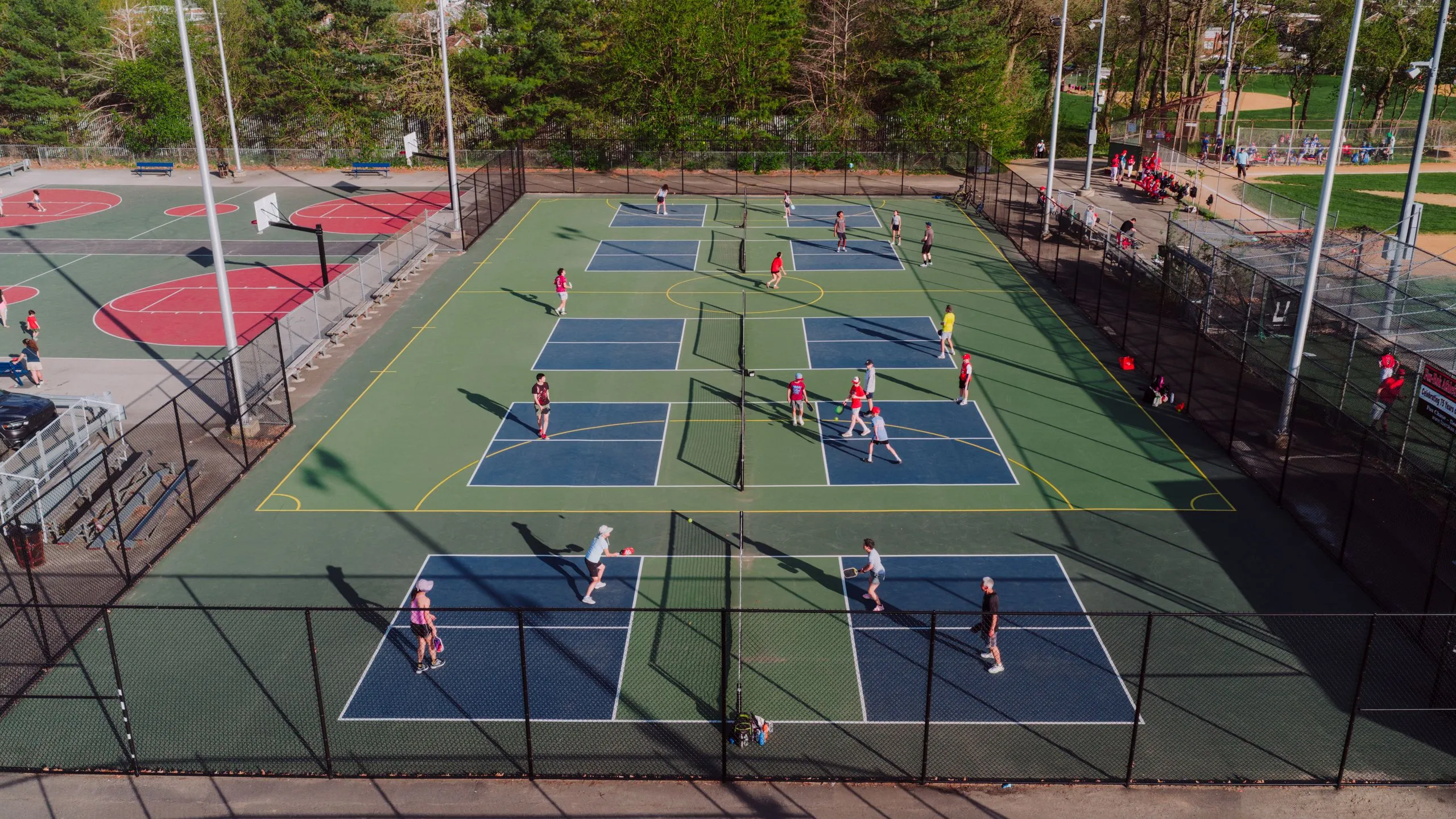

Let the queue tell everyone
whose turn it is.
Open it in the browser on the tablet you already bring. Players scan the QR and they’re in.